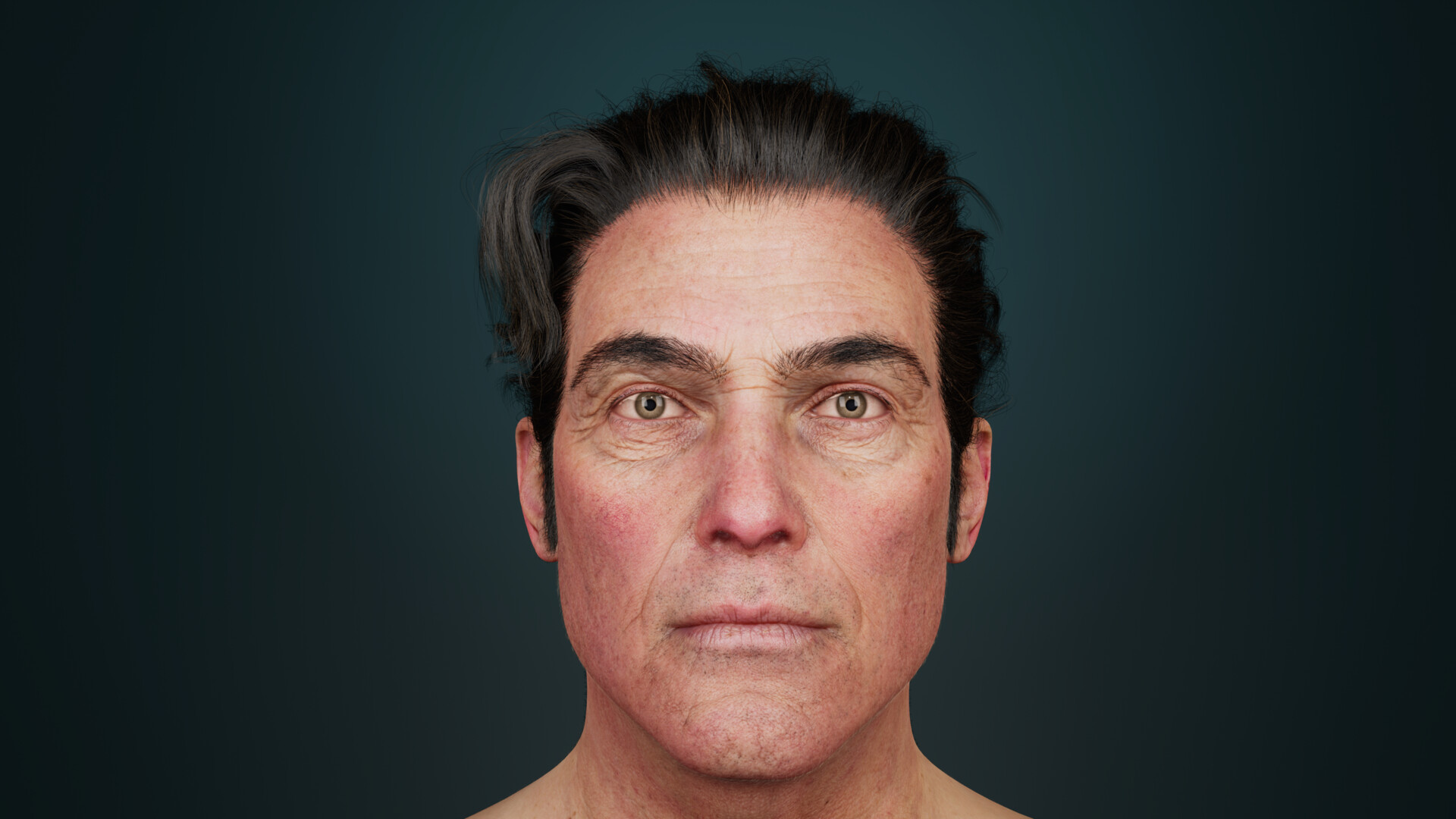
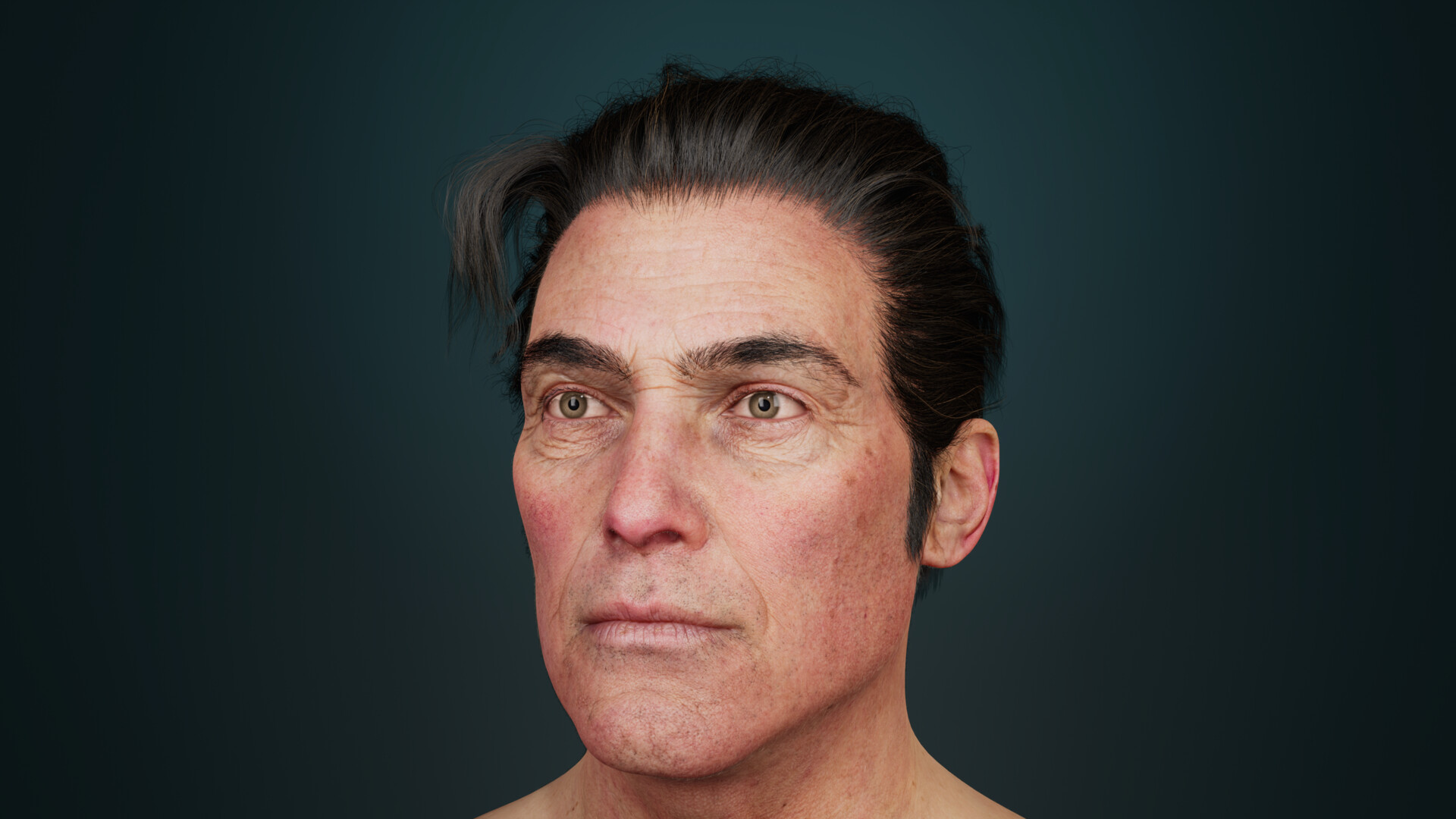
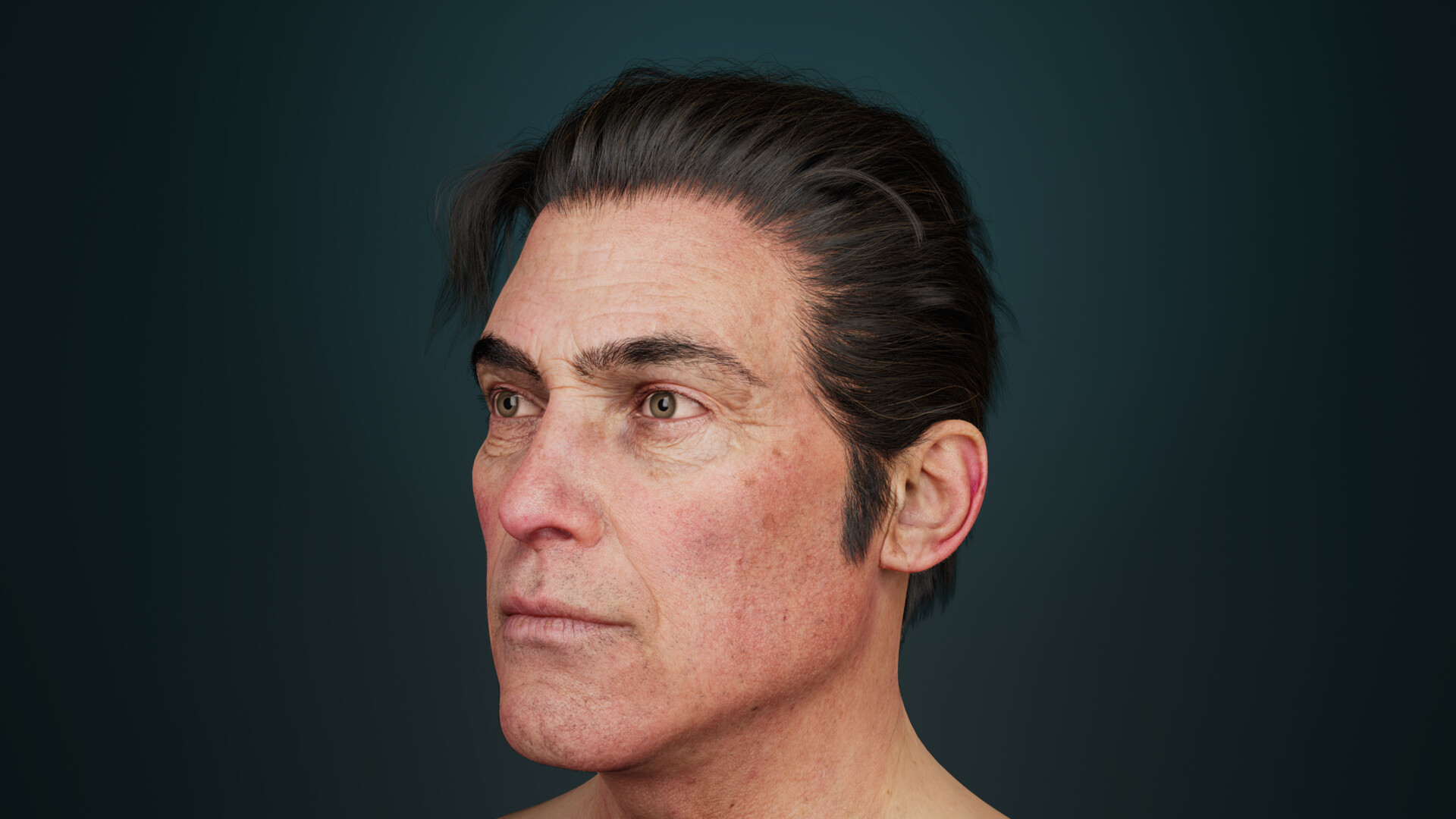
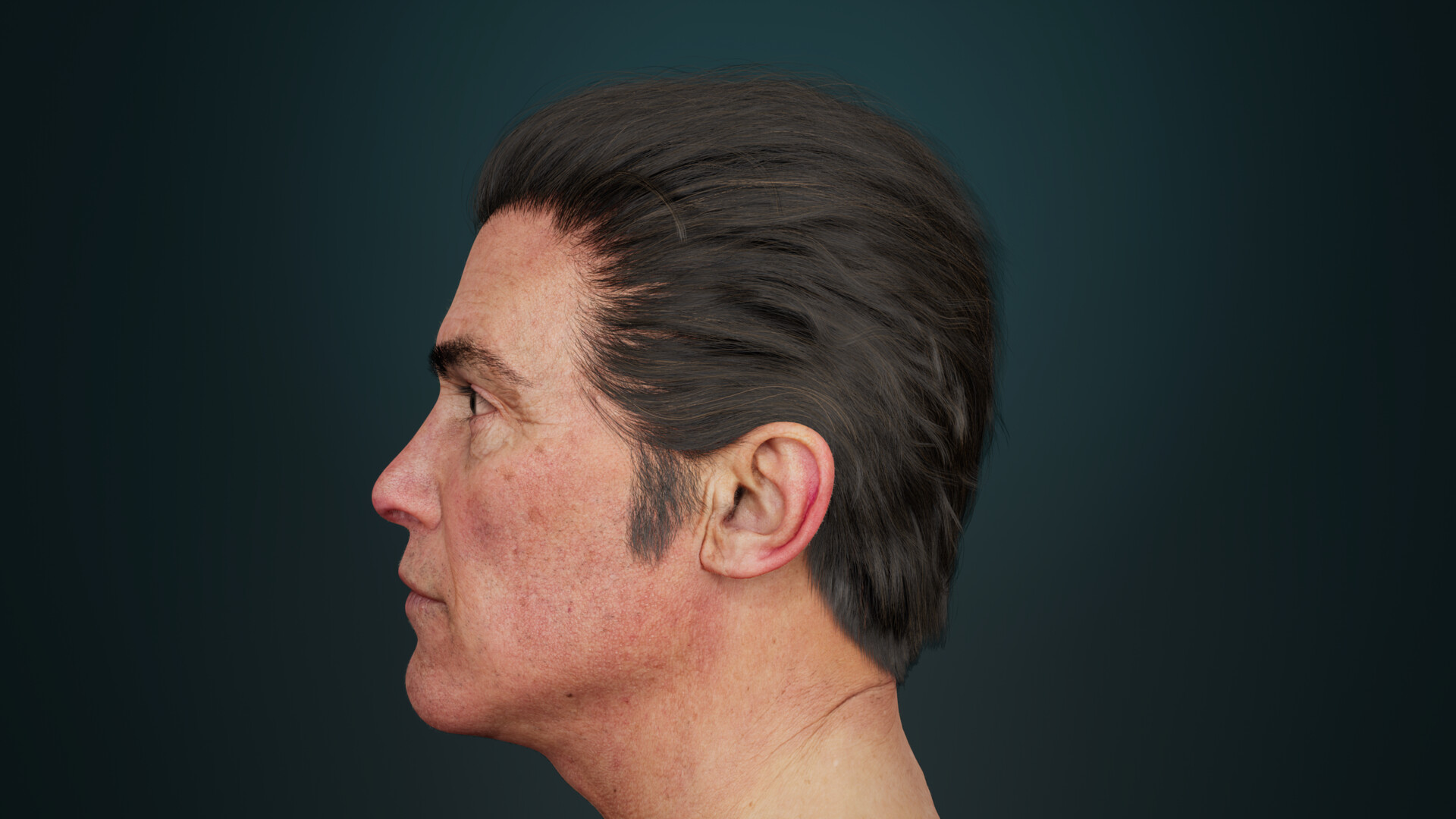
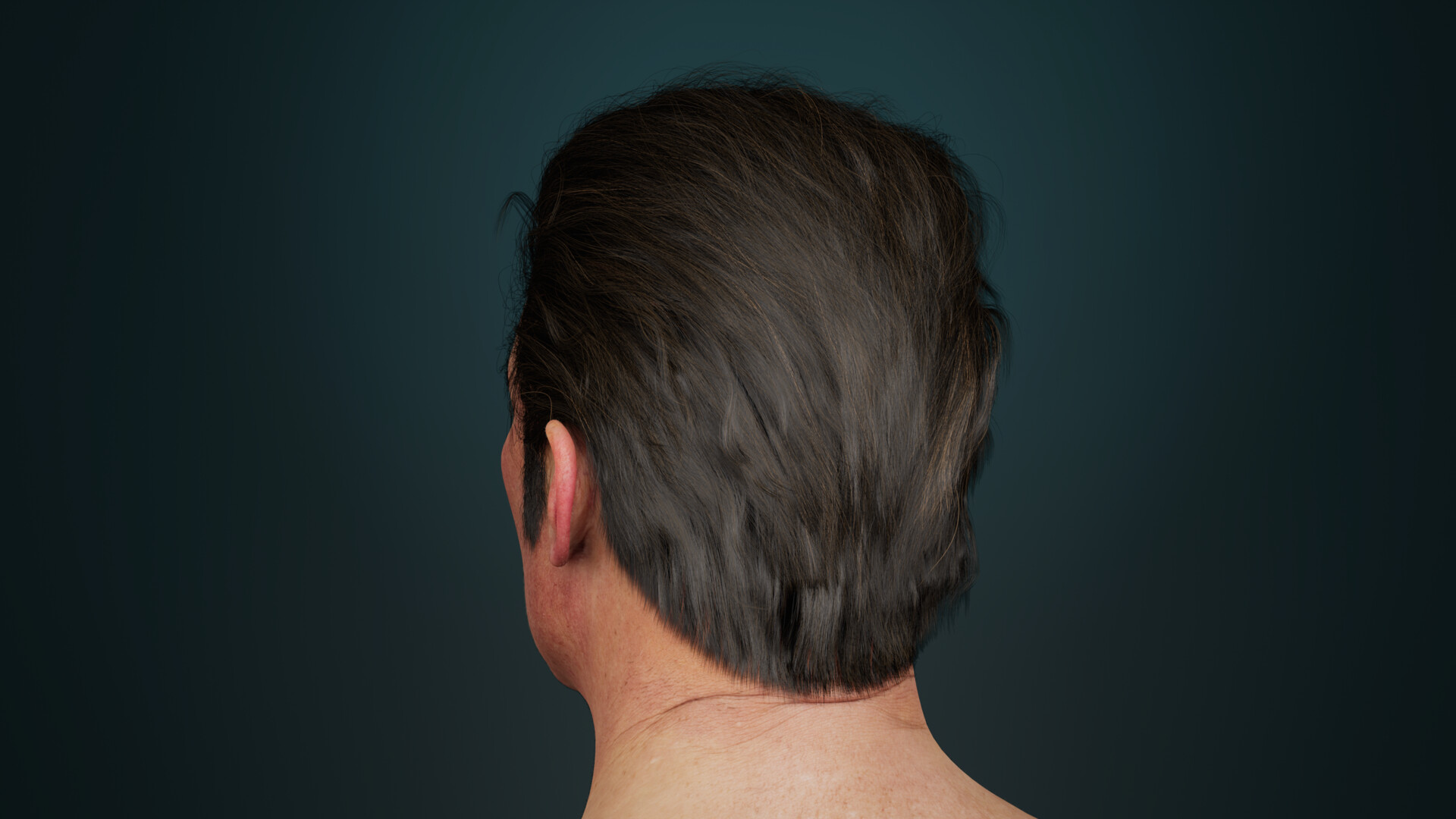
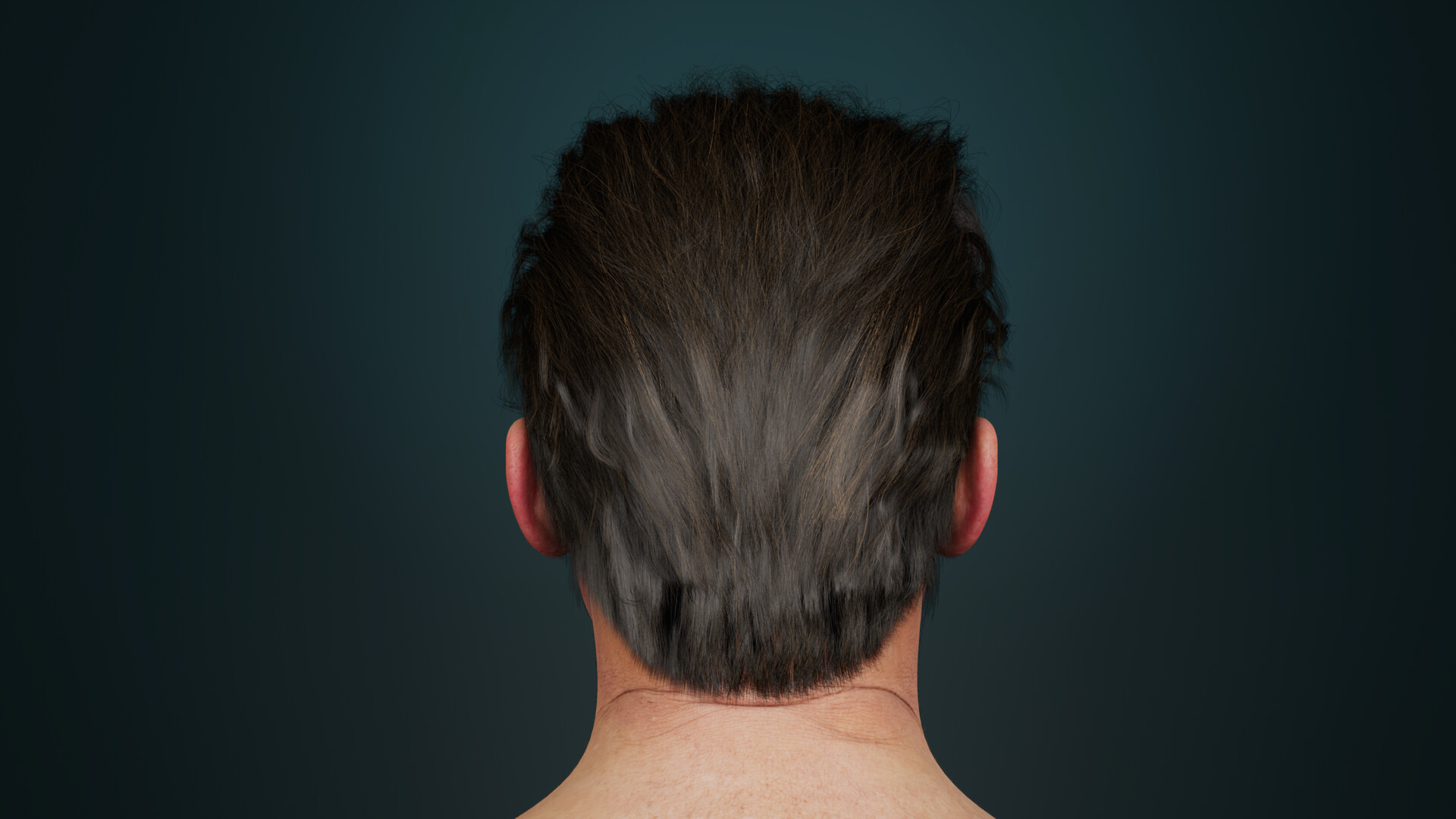
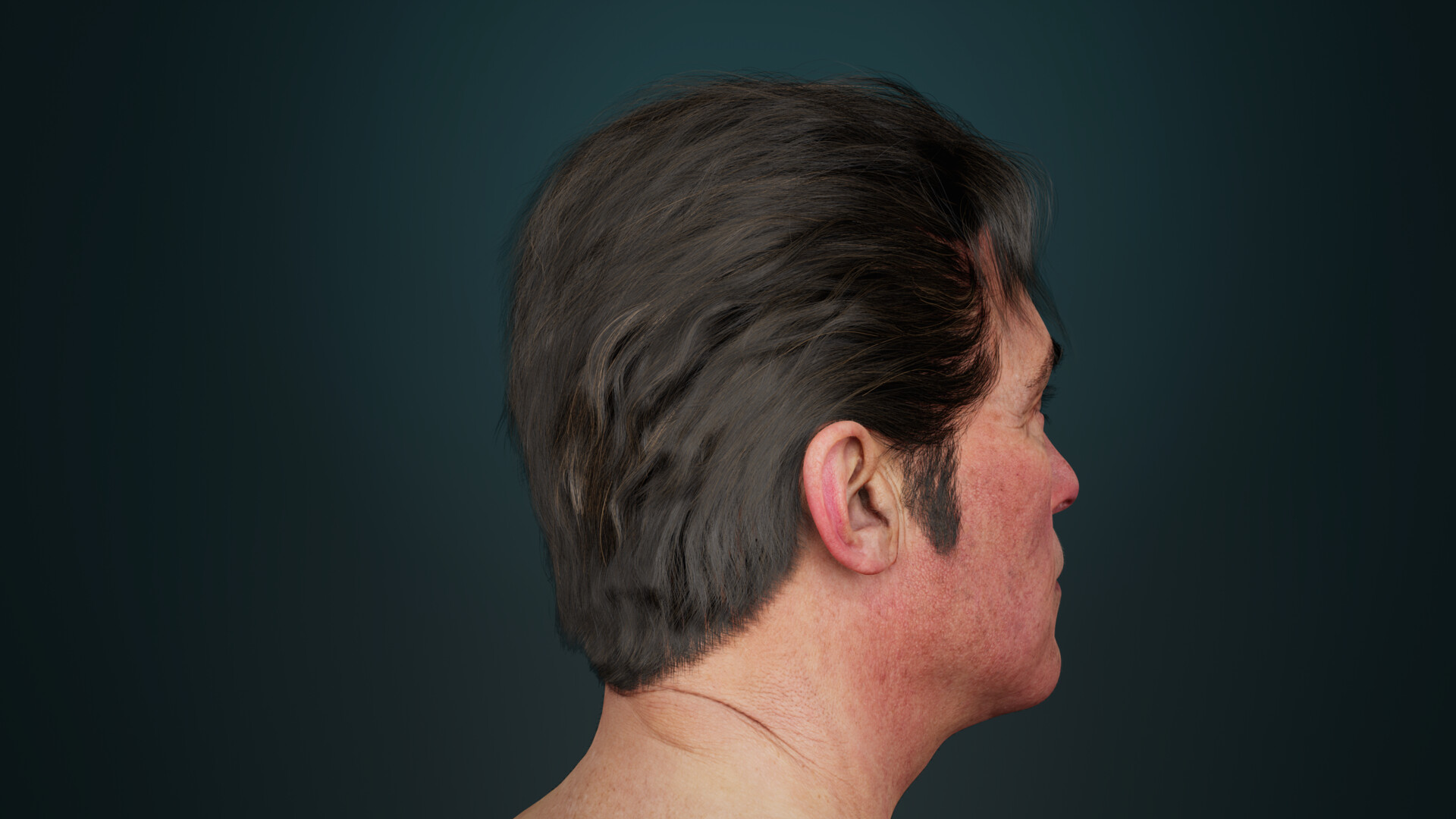
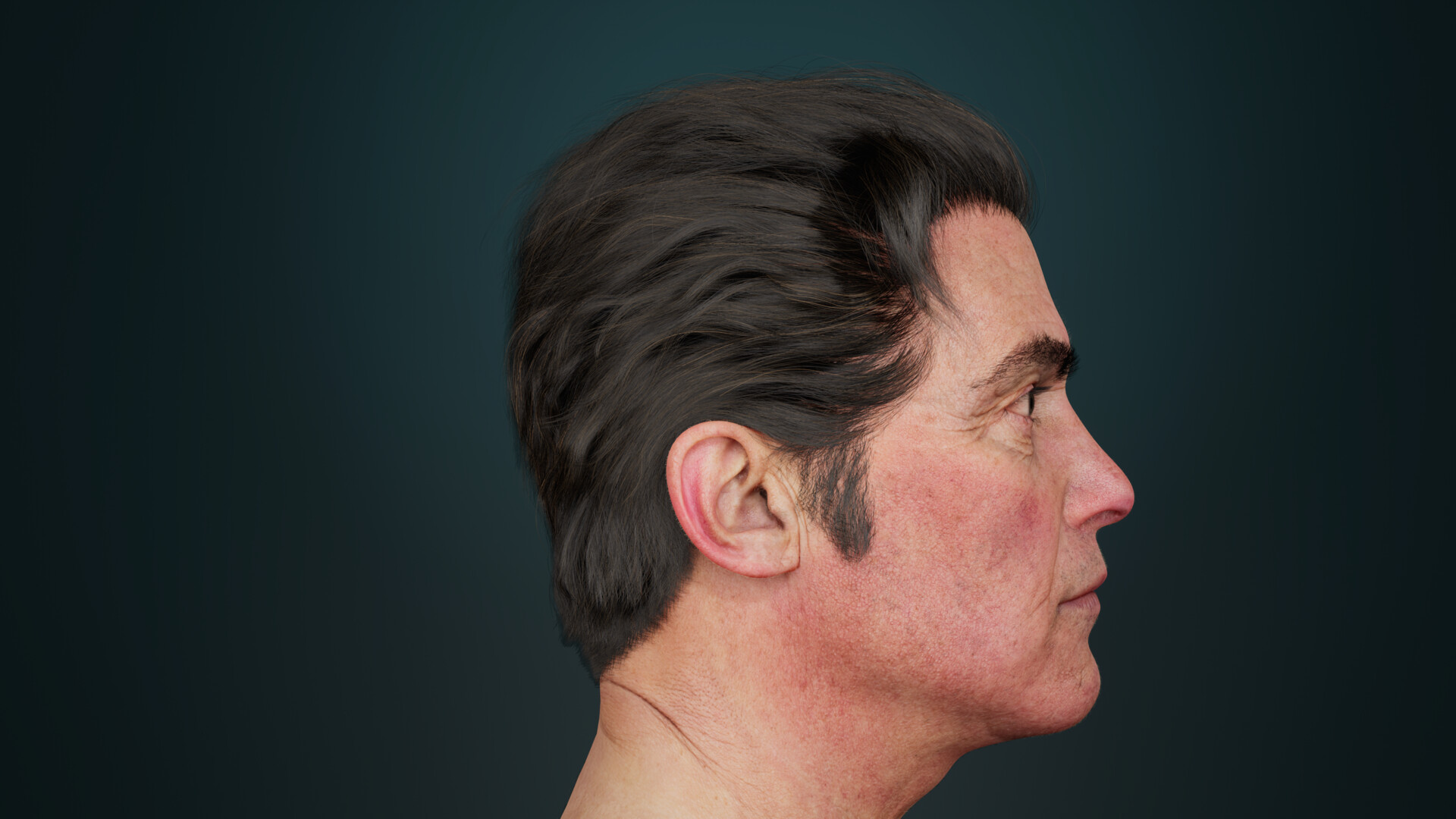
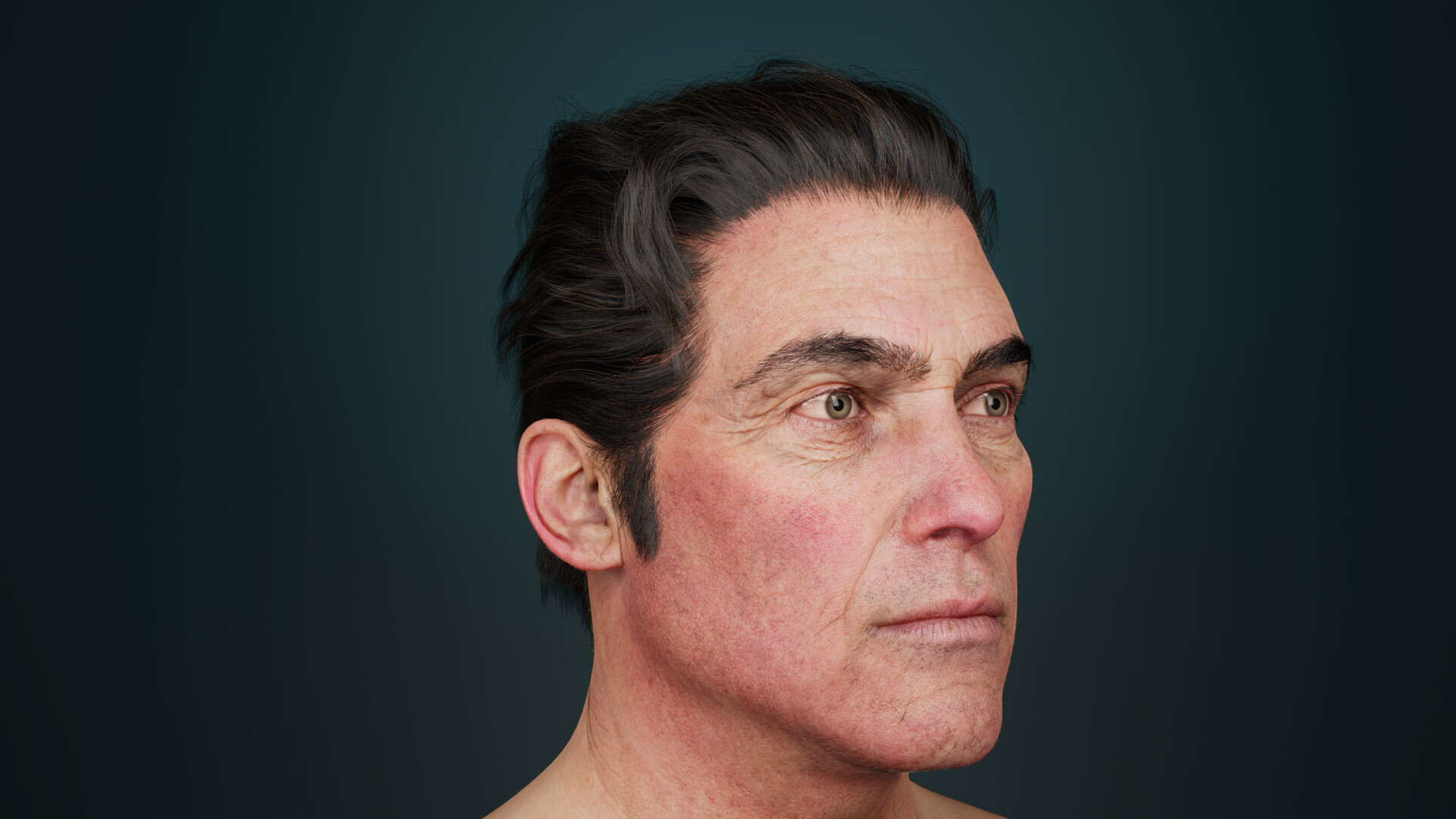
Mastering ZBrush Hair in 3ds Max with ORNATRIX. Ep 3

Tutorial / 03 July 2025


ZBrush to Ornatrix 3ds Max: Lighter Curves & Mesh Strips | Ep. 3 - 3D Hair Series  | Andrew Krivulya Charly

Hey everyone! Charly here with Episode 3 of our 3D Hair Series!  Today, we’re diving back into ZBrush to export lighter curves and mesh strips to Ornatrix in 3ds Max. Learn to trim guides with Ox Filter, use Hair From Mesh Strips, and compare workflows with V-Ray rendering in Chaos Vantage. Stay tuned for more episodes!  Check timestamps below and subscribe for pro 3D hair tips!  

Timestamps:

0:00 Intro to Episode 3 with Charly

0:06 Recap: Episode 2 Lighting & V-Ray Setup

0:29 Episode 3 Overview: ZBrush Exports

0:49 Exporting Lighter Curves from ZBrush

1:06 Importing Curves to 3ds Max

1:09 Building Fibers in Ornatrix

1:33 Grounding Strands to Scalp

1:37 Filtering Guides with Ox Filter

1:55 Manual Guide Cleanup

2:02 Adding New Guides

2:22 Pushing Strands for Volume

2:44 Collapsing Guides to Scalp

2:51 Generating Hair with Ox Hair From Guides

3:09 Checking Clumping Quality

3:19 Hair From Mesh Strips Workflow

3:51 Smoothing Mesh-Strip Hair

4:08 Render Test with V-Ray & Chaos Vantage

4:17 Which Workflow Wins? Comment!  


Happy viewing and have a great day

Best regards,

Andrew Krivulya

Report

Mastering ZBrush Hair in 3ds Max with ORNATRIX. Ep 2

Tutorial / 26 June 2025

EXPORT ZBrush Hair to ORNATRIX 3ds Max. Episode 2: V-Ray Render & Real-Time Look Dev in Chaos Vantage

In this second episode, we take the next crucial step with the hair we prepared in our first video. The focus here is not on creating a final, polished hairstyle, but on teaching the process of look development.

Using the quick groom we created in ZBrush as our example, our team will demonstrate the complete workflow for setting up lighting, materials, and performing real-time look dev with the powerful combination of Ornatrix, V-Ray, and Chaos Vantage. This guide is designed to help your team master the techniques for iterating on any hairstyle, allowing you to efficiently explore and finalize its look.

Timestamps (Chapters):

00:00 - Intro: From Raw Groom to Final Render

00:44 - Scene Prep & Key V-Ray Options for Ornatrix

00:48 - Setting Up Realistic Lighting with V-Ray Dome Light & HDRI

00:55 - Applying & Fine-Tuning the V-Ray Hair Next Material

01:00 - Real-Time Look Dev: Sending the Scene to Chaos Vantage

02:56 - Creating a Cinematic Look: DOF, Exposure, Vignette

03:13 - Smoothing Strands with the Strand Detail Modifier

03:45 - How to Fix Bald Spots with Edit Guides (Create, Comb, Plant)

04:35 - Final Result Check Across All Software

04:58 - Conclusion & Next Episode Teaser

Do you use Chaos Vantage in your look dev pipeline? What are your favorite V-Ray Hair Next presets? Share your thoughts and questions in the comments below!

Happy viewing!

Andrew Krivulya(Charly)

Report

EXPORT ZBrush Hair to ORNATRIX 3ds Max. Episode 1

Tutorial / 24 June 2025

Hey everyone! Charly here, In Episode 1, learn how to export hairstyles from ZBrush to 3ds Max using Ornatrix for stunning hair renders. We’ll cover curves export, PreVis settings, and hair guide creation. More episodes on Maya and Cinema 4D coming soon!  Navigate with timestamps below and subscribe for the full series!


Timestamps:


0:00 Welcome to the 3D Hair Series with Ornatrix+Zbrush 

0:03 Episode 1: ZBrush to 3ds Max Workflow

0:20 About Two Zbrush Fibermesh Export Methods

0:30 Setting PreVis for Curves (100% & 25%)

0:52 About Polygons Export for HairFromMeshStrips

1:01 About Exporting Ornatrix Curves at 100%

1:12 Importing Curves into 3ds Max

1:38 Combining Curves for Ornatrix

2:10 Converting to Ornatrix Hair Guides

2:15 Scalp & Curves Prep (ResetXForm)

2:40 Applying Ornatrix Hair Preset

3:08 Optimizing Guides for Performance

3:23 Generating Hair with OxHairFromGuides

3:44 Ornatrix ChangeWidth

4:09 Enabling Ornatrix High Quality Visuals in Viewport

4:27 Adding Clumping & Frizz in Ornatrix

4:55 Collapsing Fibers for Scene Efficiency

5:05 Next Steps & Episode 2 Teaser(coming soon)

What’s your favorite Ornatrix trick for 3D hair? Comment below!  Subscribe and hit the bell for more!

Happy viewing!

Andrew Krivulya(Charly)

Report

Ornatrix Cinema 4D 2025 Redshift Hair Trick You Need To See!

Tutorial / 12 June 2025

Learn how to replicate painting in BodyPaint 3D and seamlessly transfer a Redshift Hair material to the new Redshift in Cinema 4D 2025! And render Ornatrix hair. In this step-by-step tutorial, I answer a viewer's question from the CharlyTutors YouTube channel and guide you through the process of painting textures and setting up materials for stunning results. Follow along to master this workflow!

Report

Ornatrix 3ds Max 9: Mastering Clump Editing with the New Manipulator

Tutorial / 04 June 2025

Discover the powerful new clump editing feature in Ornatrix 3ds Max version 9.0.2.36198! This update introduces a dedicated manipulator that gives you unprecedented control over your hair clumps. Learn how to easily move, scale, and rotate clumps to achieve perfect hair designs for your 3D characters and models.


In this video, we'll walk you through the simple steps to activate the Ox Clump modifier, create your initial clumps, and then leverage the new manipulator for precise adjustments. Say goodbye to tedious workflows and hello to intuitive hair grooming!

Whether you're a seasoned 3D artist or just starting, this new Ornatrix feature will significantly enhance your hair creation process. Watch now to master advanced clump editing techniques!

Timestamps:

0:00 - Introduction to the New Ornatrix Update

0:05 - What is Clump Editing with the New Manipulator?

0:08 - Manipulator Capabilities (Move, Scale, Rotate)

0:19 - Getting Started: How to Use the Feature

0:22 - Step 1: Activating Ox Clump and Creating Clumps

0:30 - Standard Clump Workflow Explained

0:34 - Step 2: Accessing the Clumps Section

0:40 - Selecting and Editing Individual Clumps

Enjoy watching!

Best regards,

Andrew Krivulya Charly.

Report

Easily Manage Guides in Ornatrix Maya 5 with One Simple Trick

Tutorial / 02 June 2025


Unlock the power of guide management in Ornatrix Maya 5! This tutorial tackles a Discord user’s question, showing how to work with guides using the new Branching feature and Isolate tool. Learn to streamline your workflow, apply unique modifiers, and groom complex hairstyles or fur without duplicating objects. Perfect for 3D animators and artists aiming for efficiency and control in their projects!

🔗 Timestamps:

0:00 - Intro and Discord user question

0:03 - Problem: separating guides

0:07 - Using Isolate for guide groups

0:16 - When to separate guides

0:21 - Old method: cloning objects

0:27 - Introducing Branching in Ornatrix 5

0:31 - Benefits of single-stack workflow

0:45 - Demo: old Duplicate Special method

1:07 - Downsides of the old approach

1:33 - New Branching approach explained

1:46 - Creating a Branch

1:53 - Working with two guide groups

2:06 - Setting up branches (Hair 1 & Hair 2)

2:22 - Assigning HairFromGuides

2:29 - Defining guide groups

2:36 - Selecting groups without Branching

2:55 - Isolating with Hide Non-Selected

3:04 - Advantages of Branching

3:16 - Applying modifiers to branches

3:42 - Customizing with Use Guide Faces

3:54 - Adjusting ChangeWidth per branch

4:11 - Creating varied fur and hairstyles

4:23 - Grooming with Edit Guides

4:53 - Adding Clumping to specific branches

5:12 - Why Branching is convenient

5:19 - Tutorial wrap-up

5:21 - Thank you and goodbye  

Enjoy the tutorial!

Best regards,

Andrew Krivulya (Charly).  

Report

Overcoming 255 CV Limit in Ornatrix Maya to UE: Dreadlocks Tutorial

Tutorial / 28 January 2025


How to Bypass the 255 CV Limitation in Unreal Engine 5.3 Using Ornatrix in Maya

In this video, I provide a detailed explanation of how to overcome the 255 CV point limit on curves in Unreal Engine (starting from version 5.3) using the capabilities of Ornatrix in Maya. This method enables the creation of complex hairstyles, such as dreadlocks, without compromising quality.

This video is a response to a subscriber's question here

TIMING:

0:00 - Introduction and what the video will cover  

0:14 - Discussing the limitations I wrote about in my journal  

1:53 - Testing my dreads in Unreal Engine 5.5  

2:09 - Immediately encountering the 255-point limitation...  

2:34 - Explaining what happens when there are more points, and Unreal enforces the limitation  

3:14 - Reminding viewers about the rules and conditions introduced in Unreal Engine starting with version 5.3  

4:11 - Reviewing how my dreads look with 255 points...  

5:22 - Testing a single guide, as there were previous suggestions that the limitation might be lifted for individual objects or could be split into groups  

7:29 - Unfortunately, the limitation has not been removed  

8:37 - Proposing a solution to bypass the limitation while achieving high-quality dreads  

11:39 - Adding details to the Tube for the dreadlock design  

15:05 - Reviewing the results in Unreal, where the number of points is reduced to 70 using the workaround, but the quality is comparable to a 1000-point dreadlock  

16:57 - Considering how to address the issue with the base

__

Enjoy watching! 

Best regards, 

Andrew Krivulya Charly.

#UnrealEngine #Ornatrix #dreadlocks #Tutorial #HairCreation

Report

Comander WIP 02.05.2024. Custom Metahuman UE5

Work In Progress / 02 May 2024

Transferred the mustache and beard to Unreal Engine 5. Converted project to Unreal Engine 5.4

VIDEO


Report

Comander WIP 19.04.2024. Custom Metahuman UE5

Work In Progress / 23 April 2024

Continuing to work on bringing Commander into Unreal Engine using Metahuman Creator. I've already transferred the hairstyle, but it still needs some refinement.

Video - https://www.youtube.com/shorts/7HcZm2dzP6I


Report

Comander WIP 18.04.2024. Custom Metahuman UE5

Work In Progress / 19 April 2024

I've started creating a Custom Metahuman for Commander in Unreal Engine 5, and then I'll transfer the hairstyle. I'm recording the whole process.

I can't upload shorts video here, so you can watch it by this LINK


Report